Search

Google
 
Showing posts with label Computer and Internet. Show all posts

Thursday, April 24, 2008

USEFUL FREEWARES!!! (Part 3)

Here's the third part of the post.

Related Links:
Part 1 (Application Launchers)
Part 2 (Instant Messaging and Phone Calls)

Part 3:

Utilities

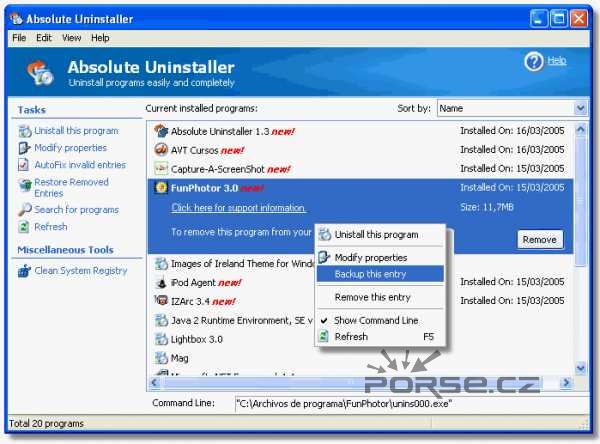
Absolute Uninstaller - After uninstalling some applications, there are some leftovers that are kept in the registry. These junks sometimes affect the performance of your PC. Uninstalling applications with this tool leaves nothing behind.

Screenshot:
Download it here


CCleaner - This is a tool that helps you maintain your system's performance by clearing your PC from unnecessary files that it keeps. Temporary files, unused registry files and other files that are not needed are erased with just one click.

Screenshot:

Revo Uninstaller - it's like add/remove programs but has more features, where it deletes ALL files of the application being uninstalled from the registry.

Screenshot:


Download it here

Glary Utilities - It offers numerous powerful and easy-to-use system tools and utilities to fix, speed up, maintain and protect your PC.

Screenshot:
Download it here

Task Killer - This allows you to end non-responding programs.

Screenshot:
Download it here

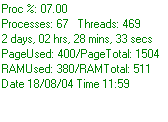
CoolMon - This displays your PC's vital statistics such as usage of CPU, RAM, and hard drives.

Screenshot:
Download it here

USEFUL FREEWARES!!! (Part 2)

Here's the second part of my post USEFUL FREEWARES.

Related Links:
Part 1 (Application Launchers)
Part 3 (Utilities)

Part 2:

Instant Messaging and Phone Calls

Skype - Make free calls (to other Skype users). Use it to call landlines and cell phones with low fees. It is also used for instant messaging, file transferring, and video conferencing.

Download it here


Trillian - Trillian allows chatters to use multiple instant messaging accounts (MSN, ICQ, AIM, IRC and Yahoo Messenger etc.) with one active program. With this tool, you can chat with your friends from different accounts ALL AT THE SAME TIME. Chat all you want.

Download it here

Meebo.com - log on to your IM accounts with this one web-based interface. There's no need for you to install. Add your friends from different accounts in just one list.

Visit Meebo here

Wednesday, April 23, 2008

USEFUL FREEWARES!!!

FREEWARES are all over the net but not all of them are actually useful to everyone. I have posted a list of freewares with short description. Just look around. Maybe you can find something useful for you. Have fun!

Related Links:
Part 2 (Instant Messaging and Phone Calls)
Part 3 (Utilities)

Part 1:


Application Launchers


ObjectDock
- Quick launch that mimics the look of Macintosh dock, with different icons and animations that you can modify. Vista ready

Screenshot:
Download it here

RocketDock - Like objectdock, this allows the user to customize icons that they want to appear on their desktop. This tool is also fully customizable.

Screenshot:
Download it here

Launchy - Helps you launch ('launch'y) documents, files, bookmarks, etc. with a few key strokes, allowing you to forget about your start button.

Screen shot:

Download it here

How to have an Effective Powerpoint Slide Presentation

In presentations, may it be for work or for school, slides to aide the reporter IS A MUST. For making slides for any type of presentation, we usually use MS Powerpoint. Thanks to this application, preparing visual aides never been this easier.

Since this is widely used, I have some points that you might want to consider in creating powerpoint presentations.

Point #1: USE BULLETS, NOT PARAGRAPHS - presentation tend to look boring whenever you show paragraphs onto your slides. Slides only help you to emphasize the thought you want your audience to catch. Paragraphs NEVER catch attention.

Point #2: USE APPROPRIATE TEMPLATES - set the ambiance or environment of the room (where you are presenting) in accordance with your topic. Say you are giving a presentation on a science project, maybe you could catch and hold your audience's attention by showing them slides designed with pictures, animations, etc. that relates to your topic.

Point #3: PICTURE, TEMPLATE AND TEXT HARMONY - Use colors that are 'eye-friendly'. This do not only apply to your template, but also to the images and texts you use. Make sure that texts are still readable even they are mixed with the pictures and images.

Well, these three point have always worked for me. I hope you get something from it too. (^_^)

Have you tried making slide presentations on Microsoft 2007? If not, I suggest start making powerpoint presentations with the newest Office version. It's loaded with totally useful features. Maybe I can post some of my presentations that I made with MS Office 2007 for you to see them. Be back soon!

Thursday, April 17, 2008

How to Turn Off OpenDNS

I was asked by a friend to search for a solution about OpenDNS. OpenDNS is a free DNS service available for all. It offers the following features:

  • blocks phishing sites
  • gives you the power to filter out adult sites and proxies among more than 50 categories
  • provides the precision to block individual domains
To know more about OpenDNS, visit their official website at www.opendns.com

It has a full support on how to activate the said service. However, it lacked the support on guiding the subscribers on turning it off.

Luckily, I bumped to this site, which solved my friend's problem about OpenDNS. Jesse Ryan (br0kenb1nary), provided a tool that can turn on and off OpenDNS service. You can download it here or download it directly from his site. Click here to go to his site.

Have fun!

Wednesday, April 16, 2008

How to Tweak Windows XP

Do you want a faster PC? Aside from an upgrade, there are other ways to optimize your PC's performance. Are you ready?

If your PC is XP with SP2 or SP1, then this is for you. What we are trying to do here is to tweak your PC. 'Tweak' maybe sounds a little different, but thanks to our generous guides out there, we can now experience the ultimate performance that our XP can give. This procedure is safe. Just follow the steps correctly.

Compared to other OS, I bet Windows appears to be the most user friendly. But actually, it's not. If you have already visited your registry, I think you understand what I am talking about. We can see a lot of folders with names we cannot understand. That makes it complicated.

We will be following the guide of Black Viper.

Part One: Let us make it really safe. Before we go to tweaking, we will be making different profiles. In this way, we will not lose the default settings of Windows. To make other profiles, here's Black Vipers Guide. Follow steps 1-14.

(If you will read a little introduction about it, you will learn a lot. )

Part Two: Here, you will be choosing what configuration you think best suits you. Here's a quick explanation. We will try to configure which service will be disabled,automatic or manual. You can choose from 8 configurations. How to know what configuration will suit you? In this link, please scroll down to 'Table Header Information". There you can see see configurations namely DEFAULT Home, DEFAULT MCE 2005, DEFAULT Pro, DEFAULT Pro x64, DEFAULT Tablet PC 2005, "SAFE" Configuration, Power User Configuration, and Bare Bones Configuration. They also have their description.

Part Three: Tweak it. All you have to do is to open your services, and using the profiles you made, just copy the configuration laid out on the table in this link (Scroll down until you see the table named 'Black Viper's Windows Service Pack 2 Service Configurations').

To go to services, click start -->> control panel (Classic view) -->> administrative tools -->> services

Your PC is now TWEAKED!! With your new configuration, you will experience a faster PC. just be sure to choose the correct configuration profile upon rebooting your PC.

Cheers!

Tuesday, April 15, 2008

Optimize your PC

There are a lot of ways to optimize your PC. Number one on the list is to protect it with necessary tools and antivirus (see this post).

However, if your RAM is too low, the only thing you can do is to upgrade it. What we are trying to do here is to get more memory for your PC.

Maybe some of you have already bumped into this kind of solution. You have the money but the problem is you really don't know what RAM to buy.

To some, I know what you're thinking. I know this is a little technical, but I promise to explain it in the most simple way. All you have to do is to find out what RAM is compatible to your system. Actually it's only a three-step procedure:

1. Connect to the internet
2. Click this link
3. Scroll a little bit and Click Scan my System button (it looks like this:)


After seeing the results, make sure you list the information released bring it to the store where you can buy memory upgrades for computers.

Most stores are selling 512MB - 1 GB of RAM. Just give them the information you listed and they will give you the RAM compatible to your PC.

Thursday, April 10, 2008

How to Protect Your PC / Laptop

Computers and internet connection is now considered as a major necessity by almost everyone. Because of the convenience it offers, internet connected computer is now a must in every household.

Although it is widely used, some still do not know how to take care of their computers.

Have you experienced one or most of the following?

  • Extremely slow loading
  • Trying to run an application but it won't open
  • Inconsistent performance of your PC (sometimes it works okay, sometimes it really sucks)
  • PC suddenly shuts off
  • Unstoppable ads popping out while browsing
  • Settings are modified or changed without your/admin user's consent
These are only some of several common problems encountered by computer users. These problems are usually caused by viruses, spywares, and the like. Well, here are some points that might help you in protecting your PC.

POINT # 1 : Antivirus

If you have not installed any antivirus yet, you should get one now. You can download free versions of antivirus that really works well. Installing an antivirus is NOT ENOUGH. Your antivirus must always be updated and maintained. PC attackers (virus, spywares etc.) are updated daily. If your antivirus is not updated, newly developed PC attackers might (and will) bypass your protection.

Do not forget to schedule full system scan for maintaining your PC. It is also recommended to scan external drives (flash drives) before you open anything from it.

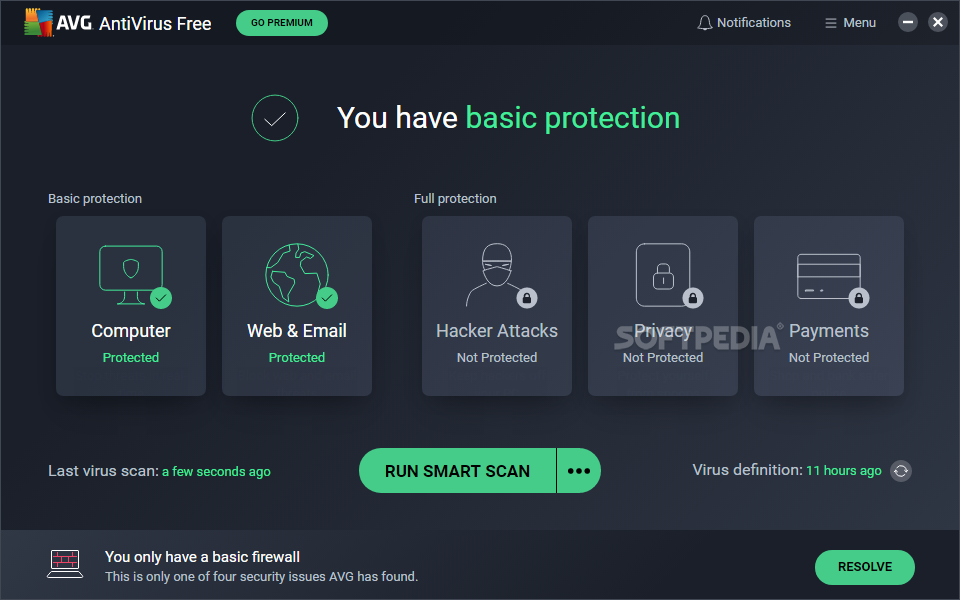
Try this FREE VERSION of antivirus:

POINT # 2 : Clear Everything after browsing

You may not know this but as you browse the net, there are cookies sent to your computer. These cookies are stored in your Temp folder. Unless you delete everything after your browsing, this small files are being piled up in your Temp folder. Cookies consume space in your computer that may cause slow loading of your PC. These small files also help the site you've visited to identify your PC, and worse, they may collect some information from you.

Clearing Temp folder is easy. If you are using Firefox, simply click Options from Tools Menu, then go to Privacy tab, and then click show cookies, then click remove all cookies.

If you are using Internet explorer, Go to the Tools menu, then Internet options, then in the General Tab, click Delete cookies and Delet Files. If you really want to make sure that everything is deleted, click Settings, then view files. If you see there are still left in the Temp folder, select it then press delete.

Another way of cleaning your temp folder is using a small freeware: CCleaner. This small tool clears everything in one click. You can also update it since it is totally FREE. To download CCleaner, click this link.


POINT # 3 : Block Changes from Your Registry

Windows responds to your commands with the registry as its library (of programs/applications and command lists). As you may have noticed, files in a folder, for instance, have file extensions (.doc, .exe, .ppt, .jpg, etc.) These extensions are recognized in the registry. Say you, the user, double clicks filename.doc. Windows will respond by opening filename with MS Word (since .doc extension file calls for MS Word application, as recorded in the library or registry).

When a virus penetrates your computer, it usually targets the registry. It aims to change some keys in your registry, making Windows OS really confused (LOL XD) That's why when you're trying to open a program, Windows is not responding as you expect it to obey properly. Confusing Windows may be avoided by protecting your registry from unnoticed changes. You see, registry must only be changed when you are installing a program. If it is not protected, virus may easily take control of your PC, which leads to PC crash, thus ending the life of your OS and in worst cases, life of your PC.

You may protect the registry by installing Spybot. Spybot covers your registry and blocks EVERYTHING that attempts to penetrate or change the it. When something tries to enter your registry, Spybot will notify you, asking you if you're allowing it or not. If you're not doing any changes, then it suddenly pops out, most probably, it's a virus. However, if you are installing something, for example, you should allow your registry to be modified or to be changed. SpyBot is free and goes with updates. To download Spybot now, click here.

Have fun with your fully protected PC! ;)

Monday, April 7, 2008

How to Download Media Files

Most internet surfers enjoy the chance of listening to their favorite music, watching interesting videos and getting ideas from catchy pictures. This is only a part of what internet can offer us. Most people call it file sharing.

Maybe most of you already know how to do it, but I bet there are still some in need of this guide.

I want to share with you the way I download music and videos from the internet. I hope you'd learn something from this.

Downloading Steps:

  1. Use Firefox browser. Most of internet surfers now prefer Firefox than Internet Explorer. From my experience, it loads faster and it is more convenient to use.
  2. Download and install 'download helper' add on to Firefox. To do it now, click here.
  3. After installing the add on, you will have to restart Firefox. You will now notice a small icon located at the right side of you're address bar. It looks like this:
  4. Now, go to you're site where you love listen your favorite music. In this tutorial, we will use www.imeem.com
  5. While you are listening to the music, you will notice that the icon beside your address bar (shown above) is in motion, and it is already colored. It looks like this:
  6. You will also notice a small drop down arrow, right beside the icon (shown above). Click it, and you will see a file named something like -zydeBOCftz391EhZAmquPBy... That is the song we're currently listening to. That is the file we would like to download. :p As you click to this filename, download window from Firefox will pop up and download the song.
    • NOTE: Downloading completes as the buffing finishes. You should not leave the page unless it has already finished downloading. You may, however, open another window (not tab) of Firefox browser to surf the net while you wait for it to be complete.
    • NOTE: Downloaded files are in .flv format.
  7. After downloading it, you may want to convert it to another format since .flv files are not playable to some players (iPod, mp3 players, etc.) There are free converters online. You may use them to avoid installation to your desktop. To try one, click here.
If you want to keep a free media converter for future use, SUPER converter works well. Click here to download.

Thats it! You're now done! This process also works for downloading media files from youtube, myspace, friendster, multiply, you name it. So, try it now! ;p